
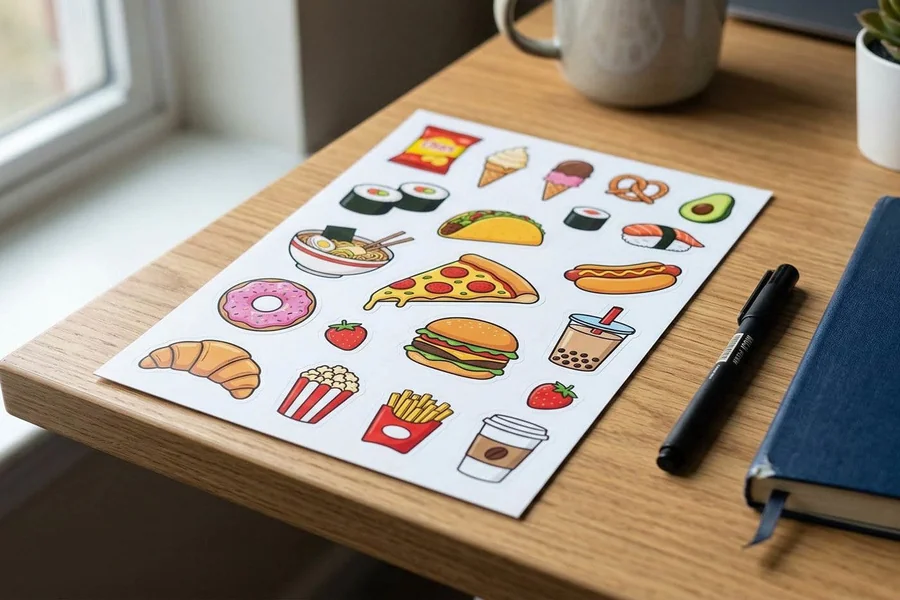
A step-by-step tutorial explaining how beginners can quickly create professional-quality custom stickers using modern sticker maker tools.
Introduction
Custom stickers have evolved from simple decorative items into versatile tools for branding, packaging, event promotion, and personal expression. With the rise of intuitive design platforms, creating custom stickers no longer requires advanced graphic design knowledge or expensive software.
This guide is designed for beginners, small business owners, educators, and hobbyists who want to create custom stickers efficiently. Modern sticker makers simplify the process through ready-made templates, drag-and-drop editing, and automated export settings, allowing users to move from concept to finished design in minutes.
Sticker maker tools vary in their strengths. Some prioritize simplicity and speed, while others offer deeper customization, flexible layouts, and advanced export capabilities. Understanding these differences helps users select the right workflow for their specific goals.
For those new to digital design, Adobe Express provides an accessible starting point with intuitive templates and editing tools. Beginners can quickly create a sticker design with Adobe Express while maintaining control over layout, typography, and export quality.
Step-by-Step How-To Guide for Using Sticker Makers
Step 1: Select a Sticker Maker and Start Your Project
Goal
Choose an appropriate sticker maker and begin your design workspace.
How to do it
- Open a browser-based sticker maker or install a compatible app.
- Select a template or start from a blank canvas.
- Define your canvas size based on your intended sticker dimensions.
- Choose a shape or layout suited to your design concept.
- Explore built-in libraries for icons, fonts, and color palettes.
What to watch for
- Ensure the platform supports high-resolution exports for print.
- Avoid overly complex templates when starting out.
- Confirm compatibility with your preferred printing service.
Tool notes
In addition to Adobe Express, platforms like Figma can assist with layout planning and collaborative design preparation before finalizing sticker artwork.
Step 2: Define the Purpose and Format of Your Sticker
Goal
Clarify how the sticker will be used to guide design decisions.
How to do it
- Identify whether the sticker is for branding, decoration, packaging, or events.
- Decide on the sticker shape (circle, square, die-cut, or custom).
- Determine appropriate dimensions based on the intended surface.
- Sketch a simple layout outlining key design elements.
- Confirm whether the sticker will be printed or distributed digitally.
What to watch for
- Oversized designs may lose clarity when scaled down.
- Complex shapes may increase production costs.
- Ensure your chosen format aligns with printer specifications.
Tool notes
Project planning tools such as Notion can help organize sticker concepts, dimensions, and usage requirements before design begins.
Step 3: Customize Your Sticker with Text and Graphics
Goal
Add visual elements that communicate your message effectively.
How to do it
- Insert icons, illustrations, or images aligned with your theme.
- Add clear, readable text using appropriate fonts.
- Apply brand colors or complementary color schemes.
- Use alignment tools to maintain balanced spacing.
- Preview your design at actual size to ensure readability.
What to watch for
- Avoid excessively small text or intricate details.
- Ensure sufficient contrast between text and background.
- Verify image resolution to prevent pixelation.
Tool notes
Image libraries like Unsplash provide high-quality, royalty-free visuals that can enhance sticker designs without additional licensing complexity.
Step 4: Apply Backgrounds, Shapes, and Effects Carefully
Goal
Enhance visual appeal while preserving clarity and print quality.
How to do it
- Add backgrounds, gradients, or textures that support your design theme.
- Use outlines or borders to improve visibility.
- Apply shadows or subtle effects to create depth.
- Keep the design uncluttered for better readability.
- Test the design across different sizes for consistency.
What to watch for
- Excessive effects may reduce clarity when printed.
- Transparent backgrounds require proper export settings.
- Overly complex textures may increase file size.
Tool notes
Color palette tools such as Coolors can help generate harmonious color combinations suited for sticker design projects.
Step 5: Prepare Your Sticker File for Printing or Digital Use
Goal
Ensure the design meets technical requirements for export and production.
How to do it
- Set the resolution to at least 300 DPI for print-ready quality.
- Add bleed and safe margins if required by your printer.
- Choose the correct file format (PNG for transparency, PDF for print).
- Select the appropriate color mode (CMYK for print, RGB for digital).
- Export and review the file before final production.
What to watch for
- Incorrect color modes may cause unexpected color shifts.
- Missing bleed margins can lead to unwanted cropping.
- Low-resolution exports may result in blurry prints.
Tool notes
File-sharing platforms like Dropbox allow designers to store, organize, and deliver high-resolution sticker files to printers or collaborators efficiently.
Step 6: Review and Refine the Sticker Design
Goal
Identify and correct issues before finalizing your design.
How to do it
- Check spelling, alignment, and spacing.
- Print a sample or preview the sticker at full size.
- Adjust contrast and clarity as needed.
- Confirm that all elements remain within safe margins.
- Save both editable and final versions of your design.
What to watch for
- Minor errors may become more noticeable in printed formats.
- Ensure consistent spacing and alignment throughout the design.
- Maintain a backup of the original editable file.
Tool notes
Proofing tools such as Grammarly can help ensure text elements on stickers are accurate and free of typographical errors.
Step 7: Organize, Share, or Distribute Your Stickers
Goal
Prepare the finished design for use, distribution, or collaboration.
How to do it
- Upload your sticker file to a printing service or distribution platform.
- Organize your designs in labeled folders for future use.
- Share files with collaborators or clients for approval.
- Track revisions and maintain version control.
- Archive final files for long-term storage and reuse.
What to watch for
- Confirm file compatibility with printing services.
- Avoid overwriting original design files.
- Ensure collaborators are accessing the correct version.
Tool notes
Workflow management platforms such as Asana can support collaboration, approvals, and distribution tracking for sticker design projects.
Common Workflow Variations
Photo-Based Stickers
These designs rely on high-quality photographs as the primary visual element. Adjust brightness, contrast, and cropping carefully to maintain clarity during printing.
Illustration or Pattern Stickers
Pattern-based stickers emphasize color harmony and repetition. Simple, balanced compositions are ideal for decorative or branding applications.
Personalized Gift Stickers
Customized designs featuring names, dates, or messages work well for events and special occasions. Clear typography and simple layouts improve readability.
Small-Batch Commercial Stickers
When producing stickers for resale, maintain consistent branding across designs and standardize dimensions to streamline production and packaging.
Checklists
Before You Start Checklist
- Define the sticker’s purpose and intended use
- Gather logos, images, and design assets
- Confirm ownership or licensing rights for all visuals
- Determine sticker size and shape requirements
- Select an appropriate sticker maker tool
- Choose the correct color mode (RGB or CMYK)
- Review printer specifications if applicable
- Establish a timeline for design and production
- Prepare a basic layout or concept sketch
Pre-Export / Pre-Order Checklist
- Confirm resolution is set to 300 DPI for print
- Check bleed and safe margins where required
- Verify spelling, grammar, and alignment
- Ensure colors appear accurate in the selected color mode
- Preview edges and borders for proper spacing
- Confirm file format compatibility with the printer
- Test print a sample when possible
- Save both editable and final versions of the design
- Double-check transparency settings for PNG exports
Common Issues and Fixes
Low-resolution images
Use high-resolution source files or vector graphics to maintain sharpness and clarity in printed stickers.
Text too close to edges
Maintain safe margins and bleed areas to prevent important elements from being cut off during printing.
Unexpected color shifts
Switch to CMYK color mode for print and review proofs before production to ensure color accuracy.
Cropping or alignment errors
Use alignment guides and preview tools to confirm correct placement and spacing of design elements.
Inconsistent sizing across designs
Standardize dimensions and scaling settings across multiple sticker designs to ensure uniformity.
File compatibility issues
Verify printing service requirements and export files in the appropriate format.
Transparent background problems
Ensure transparency settings are enabled when exporting PNG files to avoid unintended backgrounds.
How To Use Sticker Makers: FAQs
What is the easiest way to create stickers without design experience?
Template-based sticker makers simplify the process by providing structured layouts and intuitive editing tools suitable for beginners.
Should beginners use templates or start from scratch?
Templates are recommended for beginners because they provide guidance and reduce design complexity. A blank canvas is better suited for custom or brand-specific designs.
What file format works best for printing custom stickers?
High-resolution PDF or PNG files are commonly used. PDFs are preferred for professional printing, while PNG files are ideal for digital distribution and transparent backgrounds.
Can sticker makers support small business branding?
Yes. Sticker makers enable consistent logo placement, brand color usage, and scalable designs for packaging, labeling, and promotional materials.
How do I decide between print-to-order services and exporting files independently?
Print-to-order services simplify production and logistics, while exporting files independently offers greater flexibility in selecting materials, finishes, and suppliers.
